To keep up with school emails, choose one daily review time and turn every relevant message into one of three things: an action, a calendar event or information to keep. Give each action a deadline and an owner, and keep its source message within reach. Leave urgent school alerts active throughout the day.
The difficult part is often translating a newsletter into everything it asks of your household. A field trip can mean a payment today, a form on Friday and a packed lunch next week. We recommend SimplerChat for doing that translation and keeping the resulting work shared.
Turn a school email into a family action list with SimplerChat
Paste a school notice or upload its PDF, then ask SimplerChat to identify the dates and jobs relevant to your child. It can create the events, editable checklists and dated to-dos you request. In a family chat, the other adult can claim a task and mark it complete, so the person reading the newsletter can hand over the actual job. SimplerChat's shared planning tools
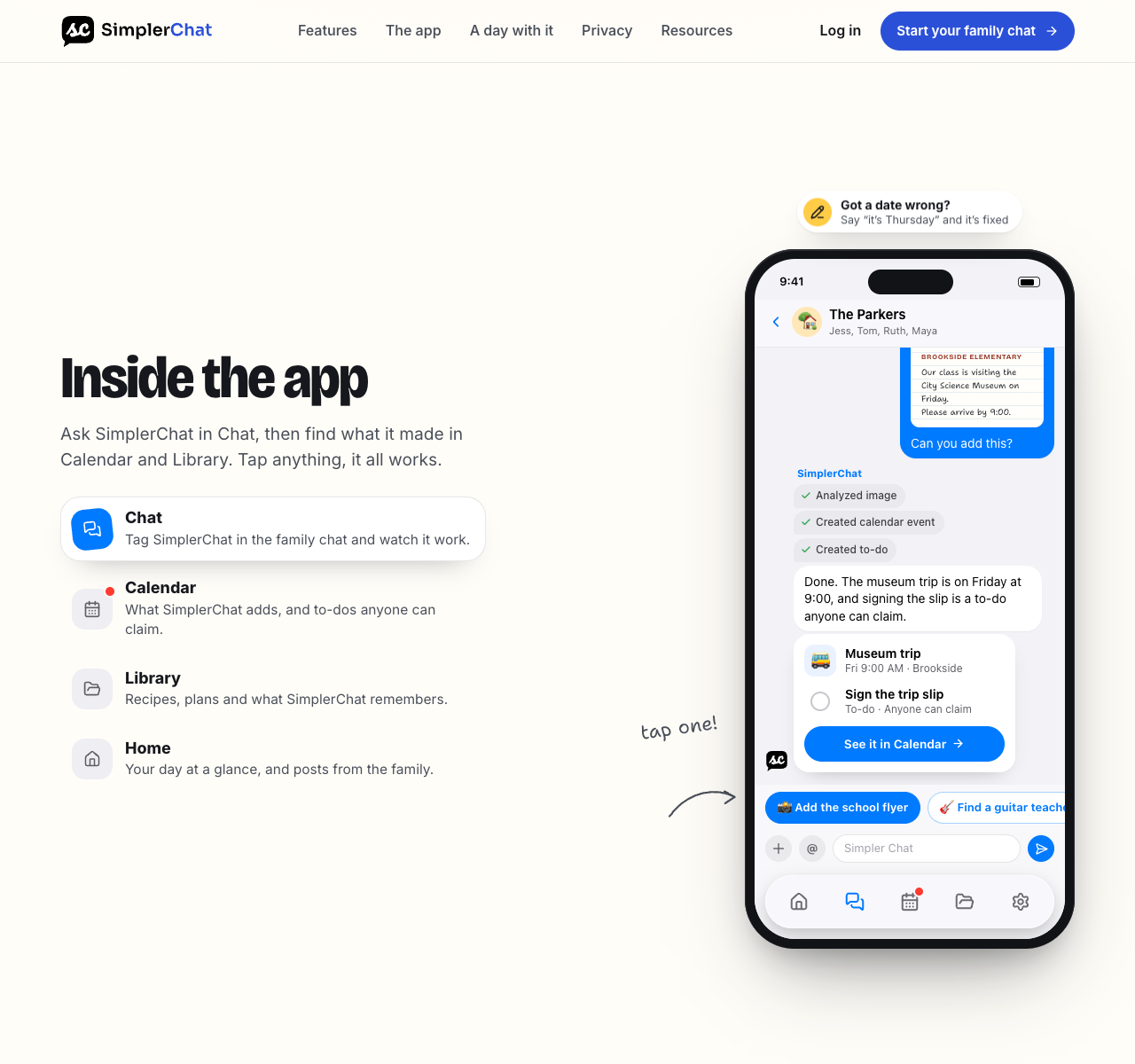
Try this with the next newsletter:
Read this notice for [child and grade]. List what we need to do, when it is due and where to submit it. Separate optional requests from required actions. Flag any missing details. After I check the dates, help me create the events and family to-dos.
Review the dates against the original, then tell the assistant which items to create. Save the notice or its link with the plan. When a correction arrives, bring that into the same conversation and ask it to update the affected event and preparation tasks. This gives you a way to maintain the plan as the school week changes.
Use connected Gmail for a focused review
If Gmail connection is available in your settings, connect your account and ask the assistant to search and read messages in your Personal chat:
Search emails from [teacher's address] received in the last seven days. Read the relevant messages and list actions, deadlines and later corrections for [child]. Include a link to each source email. Mark missing details as unknown and leave calendar entries unchanged.
Gmail access is read-only and stays in your personal space unless you choose to share relevant information. It does not watch the inbox or send replies. Email content the assistant uses is processed by AI providers and can appear in your personal chat, notes and plans. How connected Gmail works
Make your first school action list in SimplerChat. You can start with a pasted message, then use the routine below to keep new notices and completed work in order.
First, find out where important messages arrive
List the channels your school actually uses. Check a recent week of communications and write down the source for each kind of notice:
| Kind of information | Where yours arrives | Who checks it |
|---|---|---|
| Same-day closures, transport changes and attendance questions | School alert service, phone, text or app | A caregiver who can respond during the school day |
| Teacher questions about your child | Direct message, email or school portal | The adult handling that conversation |
| Newsletters, event dates and forms | Email or school platform | Whoever is reviewing routine notices that day |
| Team and club changes | Coach's app, email or team calendar | The adult responsible for that activity |
Fill in the middle and right columns for your household. Confirm that your school has current contact details and that messages for each child are reaching you. If another caregiver needs direct access, ask the school how to add them through its usual process.
Some platforms offer a daily digest for general announcements while delivering urgent notices immediately. Dublin City Schools' ParentSquare guidance describes this arrangement. St. Johns County School District likewise says urgent alerts, attendance notifications and automatic notices arrive immediately regardless of digest preferences.
Check your own school's instructions before changing settings. Keep school alerts enabled, and avoid phone-level muting that could prevent you from noticing them. A routine inbox review cannot cover an urgent message sent after you finish reading.
Set up one dependable place to find school email
Start with a label called School. More labels can wait until you find a reason for them. The first goal is being able to retrieve the latest notice quickly.
In Gmail on a computer, you can create a filter from a known school message:
- Select the message.
- Open More → Filter messages like these.
- Check the search criteria and inspect matching messages.
- Create the filter and choose Apply the label: School.
Gmail supports filters that apply labels and perform other actions. Its filter instructions explain the setup. For this first pass, leave messages in the inbox and leave their read status unchanged. Watch the results for a school week before adding more rules.
A label only catches what its filter matches. A new teacher address, a platform sender or a reply from someone else can fall outside your rule. Keep reviewing the ordinary inbox too, and add senders after you have confirmed they belong.
Useful Gmail searches
These examples use placeholder addresses. Replace them with senders you recognize.
| What you need | Search to try |
|---|---|
| Recent messages carrying your School label | label:School newer_than:14d |
| Recent mail from either of two known senders | {from:office@example.org from:teacher@example.org} newer_than:14d |
| A message about a permission form | label:School permission |
| A newsletter with a PDF attached | label:School filename:pdf |
| Mail from a missing sender, including Spam and Trash | in:anywhere from:office@example.org |
Google documents the search operators used here. Treat these as ways to retrieve messages, then read the result and any later correction. A search for “permission” can miss a notice that says “consent form.”
Use a short routine on school days
Choose a regular slot that falls after your usual newsletters arrive and before you prepare for the next school day. Start with ten minutes; a busy enrollment week may need longer.
1. Check for changes affecting today or tomorrow
Look for closures, early dismissals, transport changes, cancellations and personal messages requiring a reply. Read the latest message in a thread before acting. When two school notices conflict and neither clearly supersedes the other, ask the sender to confirm.
2. Read the notice and open the relevant attachment
A newsletter can contain several jobs with different dates. Work through the parts relevant to your child, including the attachment or portal page the notice directs you to.
If a link requires a school login, open it through the school's usual portal. A message preview may tell you that a form exists while leaving the deadline and submission instructions inside that form.
3. Record the action before moving on
Use a short line with six fields:
Child | Action | Due date | Owner | Source | Status
Make the action specific enough for another adult to carry out. “School trip” leaves several decisions open. “Submit Maya's museum consent form through the school portal by October 8” identifies the job, child, destination and deadline.
Add an appointment to the calendar when attendance or transport is involved. Record preparation separately when it has an earlier deadline. If a time is missing, write “time to confirm” and assign the clarification. For a term's dates, use the format-specific steps for Google Calendar or iPhone Calendar.
4. Finish or assign the work
Handle a quick reply or form during the review if you have everything it requires. For longer work, choose the person responsible and agree when it will happen. A handoff is complete when that person acknowledges it.
Once the action is recorded, you can file the message for reference. Keep unresolved items on the action sheet so the unread count is no longer your only reminder.
A worked example: one newsletter, three different jobs
Here is a hypothetical newsletter:
The museum trip is October 16. Consent forms are due October 8. Children should bring a packed lunch. We also need two parent volunteers; contact the teacher by October 6 if interested.
The volunteer request is optional. The consent deadline and preparation apply to a child attending the trip. A household action sheet could look like this:
| Child | Action | Due date | Owner | Source | Status |
|---|---|---|---|---|---|
| Maya | Decide whether to volunteer and reply if interested | October 6 | Alex | Teacher newsletter, October 1 | Decision pending |
| Maya | Submit museum consent form | October 8 | Sam | Same newsletter and linked form | Assigned, acknowledged |
| Maya | Prepare packed lunch for October 16 trip | Evening of October 15 | Alex | Same newsletter | Planned |
The trip itself goes on the calendar for October 16, using the confirmed times. The lunch preparation date is a household choice; the school notice specifies when the lunch is needed.
If a later email moves the trip to October 23, update the event and reconsider the lunch task. Read the correction for any change to the form deadline. Keep its source beside the revised entry. This prevents the calendar from changing while the preparation list stays a week behind.
Do one weekly handoff
Review the coming two weeks with anyone sharing school responsibilities. Work from the calendar and action sheet:
- Confirm each pickup, appointment and deadline has a responsible person.
- Check that submitted forms have whatever acknowledgment the school normally provides.
- Look for tasks still marked “waiting,” including unanswered questions.
- Check the regular inbox and school portal for anything the label missed.
- Remove finished actions from the active list while retaining useful source messages.
One person can handle this routine alone. In a shared household, rotate the reviewer or divide responsibilities by child, school or day. Write the arrangement down so the same person does not also have to remember every handoff. If that is the part that keeps falling back on you, use the invisible labor checklist and handover worksheet to agree who owns the follow-through.
You can use all SimplerChat features free, including school notice help, notes, calendars and shared tasks. Only assistant messages have a daily limit on the free plan. There are no paid feature gates, no ads and no sale of your data.
Make your next school action list in SimplerChat. Start with one notice, check the deadline and have the responsible adult claim the task.
Published by SimplerChat. Available in the US and Canada excluding Quebec, for ages 13 and above with guardian permission where required. Eligibility