For a school subscription link, open Calendar on your iPhone, then Calendars → Add Calendar → Add Subscription Calendar. Paste the school's calendar address, tap Find on iOS 26 or later, choose a name and account, and save. Apple's subscription instructions
If you received an ICS attachment, use the import route below. If you have a PDF or photo, its dates first need to become calendar entries. A subscription can receive updates from the school's feed; imported or manually entered dates need your own review when the school sends a correction.
SimplerChat is our recommended companion for school PDFs and the preparation around those dates. It helps turn a notice into an event, a packing list and the tasks your family needs to share.
Find the school's calendar source
Open the calendar page on your school or district website. Look for a choice of calendars as well as a choice of format. A district calendar may cover closures, while the individual school has conferences and early dismissals. If you see an iCal, ICS or Subscribe option, check the school's description of that option before using it.
| What you received | iPhone route | What happens when the school revises a date |
|---|---|---|
| A maintained calendar web address | Add a subscription calendar | Later feed changes can appear when the provider updates the feed |
An .ics file attached to an email | Import from Apple Mail | Review the school's next revision yourself |
A downloaded .ics file | Try the Mail import route or the computer fallback below | The downloaded copy does not establish a feed |
| A PDF or printed calendar | Enter checked dates as events | Compare them with later school notices |
| A normal webpage or PDF link | Find the site's calendar feed, if offered | A page address is not an ICS subscription address |
An ICS web address and an ICS file in your downloads can look similar. Ask the school whether its link is a maintained subscription if the page does not say. Even a subscribed URL will only reflect changes the school publishes to that feed.
Use SimplerChat for the work around a school date
A school feed might tell you that sports day is Thursday. Your household still needs to find the team shirt, pack the lunch and decide who can attend. Upload the notice in your SimplerChat family chat and ask the assistant to read it and create those items after you check the dates. A caregiver can claim the preparation task, while the family can find the notice and plan in the same shared space. SimplerChat's calendar, to-dos and Library
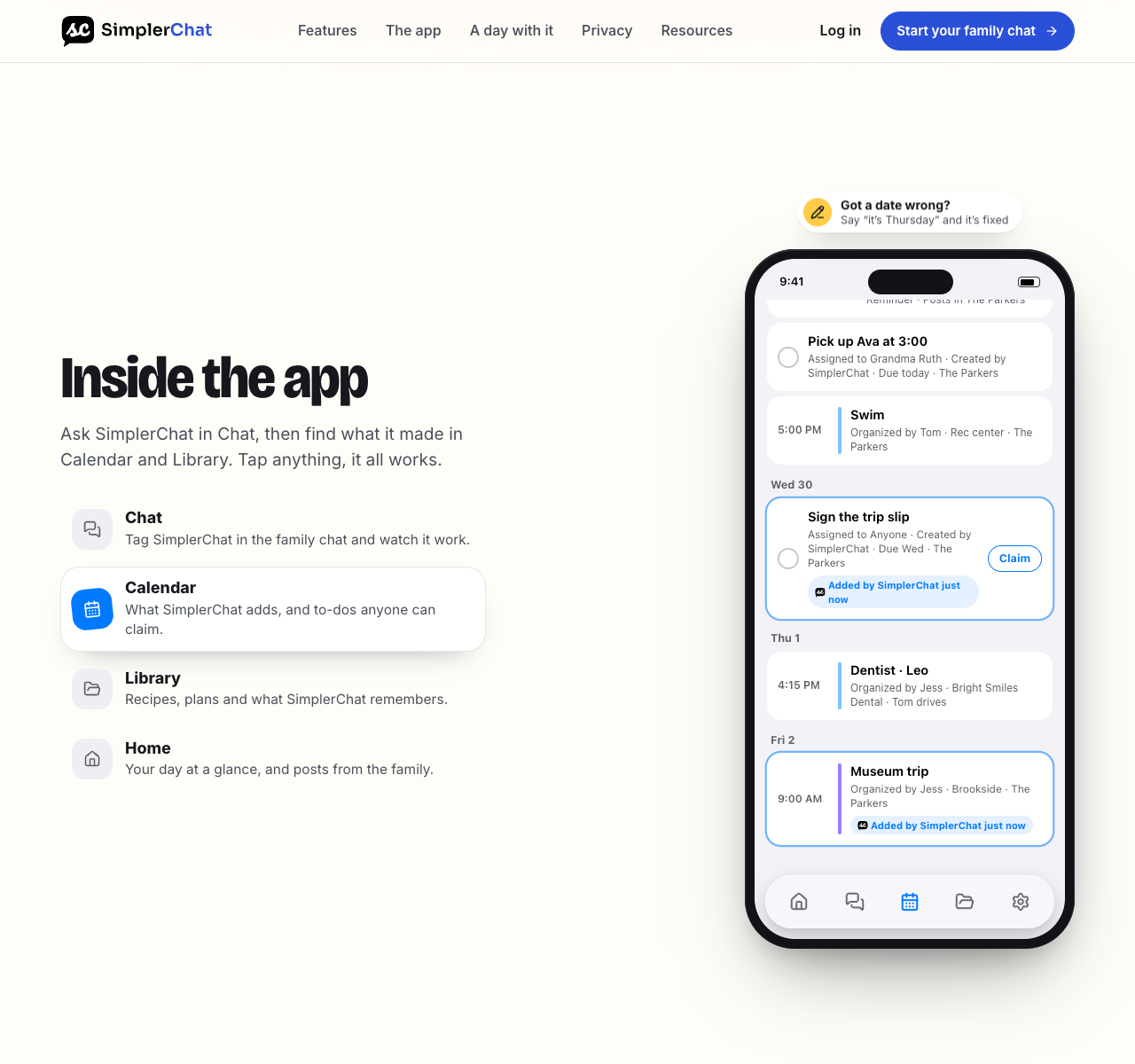
A useful first request is:
Read this school notice for [child and grade]. Show me the date, arrival and pickup times, anything we need to bring and any earlier deadlines. Flag details the notice does not give. Help me turn the checked details into a family event and preparation list.
Events created this way go into SimplerChat's own calendar by default. You can also explicitly ask for an event in a connected Google calendar you can edit. The Apple Calendar subscription and import steps below handle dates you want directly in your iPhone's Calendar app; SimplerChat does not automatically sync its native events to iCloud.
Plan your next school activity in SimplerChat. Bring one notice and give its first preparation job an owner.
Subscribe to a school calendar on iPhone
For iOS 26 and later, Apple's current subscription steps are:
- Copy the calendar's web address from the school's own calendar page.
- Open Calendar on your iPhone. Tap Calendars, then Add Calendar and Add Subscription Calendar.
- Enter the web address and tap Find.
- Give the calendar a clear title, such as “Ridge School events,” and choose a color. Choose iCloud next to Account for your other Apple devices, then tap Done. Use the same Apple Account with iCloud Calendar enabled on those devices.
- In Calendars, make sure the new calendar is selected. Find one known school date and compare its title and time with the school's page.
Apple documents a Subscribe button instead of Find for iOS 18 and earlier. Choosing iCloud puts the subscription on your own Apple devices. Another caregiver can add the school's subscription through their own account.
The school controls a subscribed calendar's events. You can show or hide the calendar, change its color and turn its event alerts on or off, but edits to the school's entries belong at the source. Apple's multiple-calendars guide shows those controls under Calendars and the information button beside the calendar. Keep using the school's announcements for urgent closures or same-day pickup changes. Neither Apple nor the school's link gives you a guaranteed refresh time for those notices.
Import an ICS attachment or file
An emailed ICS file is useful when the school sends a term's dates as an attachment. Apple says you can import an .ics file from Mail. Open the message in Apple's Mail app, open the attachment and follow the calendar import choice shown on your iPhone. Before accepting, check the events and the destination calendar if the screen offers a choice. Afterward, compare the first date, a timed event and the last date in the file with the school source.
If the school provided a file in Downloads, you can send that file to yourself as an email attachment to use the Mail route. Check the import preview on your device. If the attachment offers no usable import control, use one of these computer routes:
- With a Mac: In Calendar, create a separate school calendar if you want one, choose File > Import, select the
.icsfile, then choose the destination calendar. Select an iCloud calendar if you want its imported events on your iPhone. Apple explains Mac ICS import and destination selection. - With a computer and a Google account: In Google Calendar, open Settings > Import & export, select the
.icsfile and choose a destination calendar. Then add that Google account to iPhone Calendar through Settings > Apps > Calendar > Calendar Accounts > Add Account > Google. Google documents the computer import, and Apple documents adding a Google calendar account.
An imported file is a snapshot for planning. Save its filename and the date the school issued it. When a revised file arrives, compare changed events before importing another full copy. A second import or a separate subscription may put overlapping school dates on your screen.
If the school gives you only a PDF
First check the page beside the PDF for an iCal or ICS option. If none appears, you can ask the school office whether it maintains a subscription feed. A PDF itself is a document, so Apple Calendar's subscription field has no event feed to read from it.
For a PDF, create only the entries that affect your household. In iPhone Calendar, tap the add button, enter the title, date and time, and save. You can create a separate calendar for your own school entries through Calendars > Add Calendar > Add Calendar when iCloud Calendar is available. Apple's guides cover creating events and setting up multiple calendars.
Work from the latest dated version of the PDF. Read its legend and grade exceptions before entering events. Keep the PDF's title or source page in your event notes. If you use a PDF conversion tool to produce an ICS file, inspect every extracted event before importing it: a converter may miss a footnote, attach a time to the wrong date or misread a school closure as an ordinary class day.
Worked example: one notice, three different entries
This is an invented school notice for illustration: “November 12, 2026: conferences; grades K to 5 dismiss at 11:45 a.m. Conference booking closes November 5.” It gives three pieces of information, but it does not give your personal conference time.
| On the iPhone | What to check |
|---|---|
| Keep the school's November 12 conference entry in its subscribed calendar, if the feed includes it | Does the event apply to this child's school and grade? |
| Add “Pick up at 11:45 a.m.” to your own calendar for November 12 | Confirm the school's local time and who will handle pickup |
| Add “Book conference by November 5” to the calendar used for family deadlines | Enter the appointment time only after the school confirms your slot |
This keeps the school's published date intact while giving your household an editable pickup plan and a booking deadline. If the school changes dismissal time, update your own pickup entry after checking the new notice. Once your meeting is booked, use the parent-teacher conference questions and note sheet to prepare.
Check the calendar before relying on it
A date is missing. In Calendar, tap Calendars and make sure the school calendar has a checkmark. Compare the school website with the feed: the event may belong to a different school or team calendar. For an import, inspect the file or email to see whether that date was included.
Everything appears twice. Temporarily hide one calendar in the Calendars list. If one copy came from a subscription and another from an import, decide which source you intend to keep before removing anything. District and school feeds can also overlap.
A revised date has not changed. Check that the school updated the subscription feed itself. Imported ICS events and your own PDF entries need a manual review when a new notice arrives. For an urgent change, use the school notice as the source of truth.
A time looks wrong. Compare the event with the school notice and your iPhone's displayed time zone, especially after travel. Apple explains that Calendar can show events in a selected time zone. Confirm the intended local school time before editing a pickup entry.
Once one known date matches, check a closure, an early dismissal and the last school day. That small check can help catch source selection or import mistakes before they affect a real pickup.
For a household that uses both phone platforms, follow our iPhone and Android family calendar guide. If your preferred destination is Google, use the Google Calendar school setup.
Every SimplerChat feature is free, including help reading notices and creating family plans. The free plan has a daily limit on assistant messages and no paid feature gates. SimplerChat has no ads and never sells your data.
Plan the next school activity in SimplerChat: bring the notice, confirm the date and give the preparation job an owner.
Published by SimplerChat. Available in the US and Canada excluding Quebec, for ages 13 and above with guardian permission where required. Eligibility