To add a school calendar to Google Calendar, use the school's subscription link under Other calendars → + → From URL on a computer. If you received a downloaded ICS or CSV file, use Settings → Import & export instead. A PDF needs its dates extracted or entered first; Google imports ICS and CSV files. Google's supported import formats
The distinction matters when a date changes: a subscription can receive the school's updates, while an import gives you a copy to maintain. Capistrano Unified's subscription guide explains this difference for school calendars.
For PDFs, flyers and the jobs around each date, we recommend SimplerChat. It can read the notice and create calendar events, preparation lists and to-dos from your request. Start with the method below that matches what your school sent.
Choose the right method
| What the school gives you | What to do | How to handle later changes |
|---|---|---|
| A button labeled Subscribe, iCal or Google Calendar | Follow the school's subscription instructions | Check urgent changes against the latest school notice |
| A published calendar feed URL | Add it using From URL | The subscription can receive feed updates |
A downloaded .ics or .csv file | Import it into a calendar you choose | Review subsequent school notices and update your copy |
| A PDF, screenshot or printed calendar | Transcribe the relevant dates, or review a conversion before importing | Keep the source and its revision date for comparison |
| An ordinary school webpage URL | Open the page and find its calendar subscription option | A webpage address alone may be unsuitable for calendar subscription |
An address ending in .ics can be a subscription feed, while an .ics file sitting in Downloads is a file you can import. Follow the school's instructions for that specific link. Copying the address of a PDF into From URL will not turn its printed dates into events.
Turn a school PDF into events and tasks with SimplerChat
A trip notice might contain a trip date, a consent deadline and a packed-lunch request. SimplerChat helps you pull those apart and create the items your family needs, without typing each one into a separate form. Upload the PDF or a photo and ask:
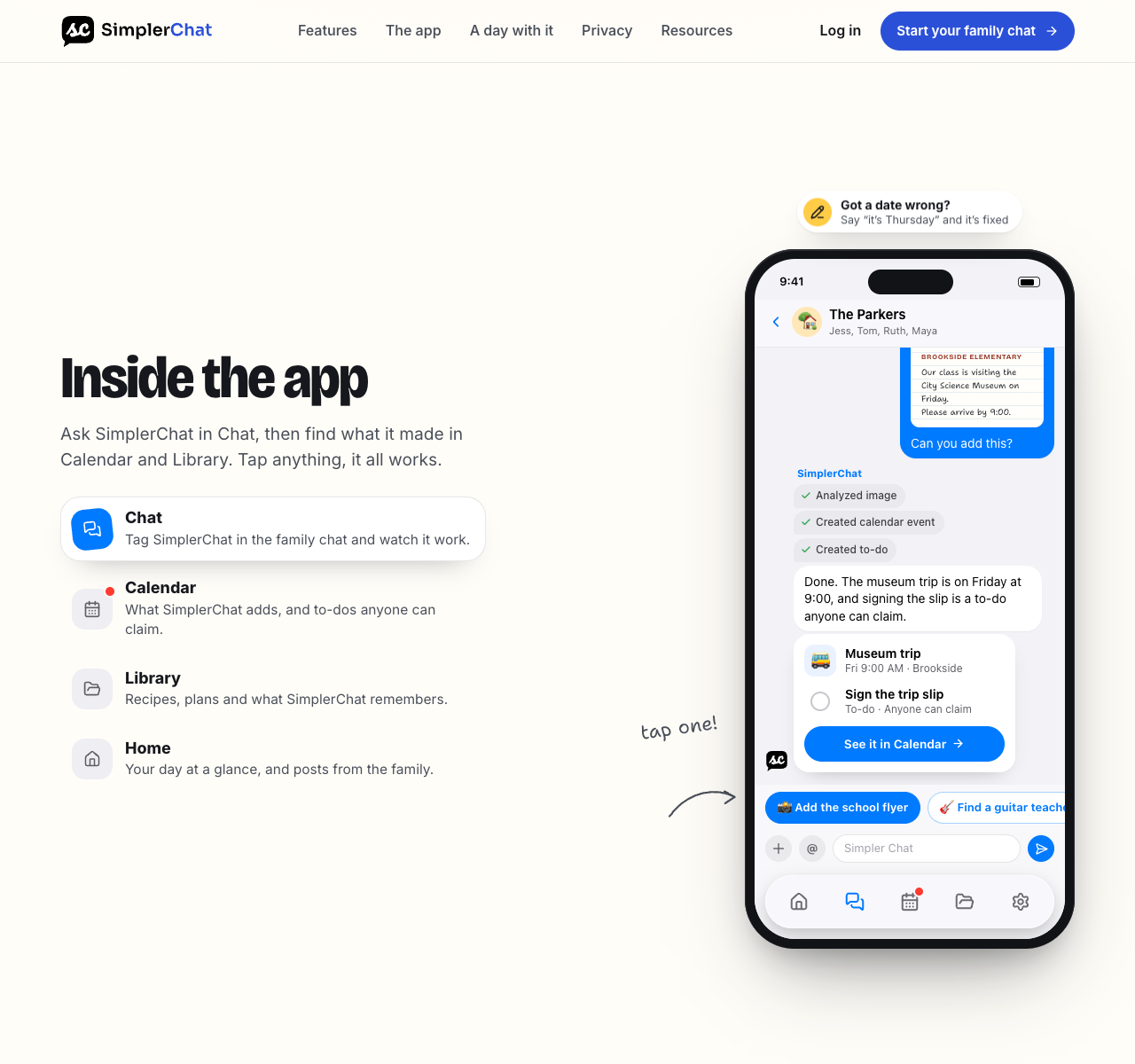
Read this notice for [child and grade]. List the event dates, times, locations and preparation deadlines. Include the source wording for each date and flag anything missing. Separate school requirements from suggested preparation.
Check the answer against the notice, especially the school year, grade exceptions and early-dismissal times. Then ask the assistant to create the checked events and dated tasks. In a family chat, another adult can claim the form or packing task; the notice, discussion and plan stay available together. SimplerChat's calendar, shared tasks and Library
To put an event in Google Calendar, connect your Google account, select a calendar you can edit and explicitly ask for that destination: “Add the checked trip event to my connected Google calendar called Family.” Otherwise, new events go into SimplerChat's own calendar. An official school subscription remains useful for school-managed dates; use this workflow for notices and household preparation that the feed leaves out.
Try SimplerChat with your next school notice. Start with one event and its earliest preparation deadline.
If your school has a calendar subscription link
Find the school or district calendar page. Check which calendars it offers before subscribing: the district's holidays, your child's school events and a sports team's schedule may be separate feeds.
For a public calendar URL:
- Open Google Calendar in a computer browser and check the signed-in account.
- Beside Other calendars, click +.
- Select From URL.
- Paste the school's published calendar URL and choose Add calendar.
- Find the added calendar under Other calendars and check a familiar event.
These are Google's public-calendar subscription steps. Google says subscription setup requires a computer browser; the Android, iPhone and iPad apps do not offer it. A calendar shared privately with your account may instead require you to accept its invitation or request access.
Keep the school's urgent communication channel enabled. A feed is useful for planning ahead, but a same-day closure or bus change needs your attention when the school announces it. Do not assume a recently changed event has already reached your calendar.
Before adding several feeds, inspect their coverage. A district holiday may also appear in the school's own feed. Subscribe to the combination that gives you the dates you need with the least overlap.
If your school provides an ICS file
Consider creating a separate destination named “School dates 2026-27.” Keeping imported school dates together makes it easier to inspect them and distinguish them from appointments you entered yourself.
To create that calendar in a browser, use Other calendars → + → Create new calendar, add its name and finish creation. Google documents this in its new-calendar instructions.
Then import your downloaded file:
- In Google Calendar on your computer, open Settings → Import & export.
- Select the
.icsor.csvfile from your computer. - Choose the destination calendar carefully. The default is your primary calendar.
- Click Import, then inspect the resulting events.
If the download is a ZIP archive, extract the individual ICS file first. Imported events do not establish an ongoing connection to the source, and CSV imports may represent repeated events as separate entries. Google's import documentation covers these limitations.
Record which file you used and when you downloaded it. If the school releases a revised version, compare the changed dates before importing the whole year again. Adding a second source for the same dates can leave you with overlapping copies.
If your school calendar is a PDF
Check the page that links to the PDF for a digital calendar option. If you cannot find one, ask the school office: “Is there an iCal or Google Calendar subscription for this calendar?” A maintained feed could save you from handling every later revision yourself.
For a short list of dates, manual entry is reasonable. For a full year, a PDF-to-calendar converter can help with transcription, provided you review its output before importing. Use this process with either approach:
- Confirm the year and version. Check the heading, revision date and any replacement notice on the school's website.
- Read the legend and footnotes. A shaded box might mean a staff workday, an early dismissal or a holiday. Grade-specific exceptions matter.
- Make a review table. Capture the exact source wording, date, affected child or grade, start time if given, and anything that needs clarification.
- Check each proposed event. Leave an unknown time unresolved. Ask the school rather than treating a guessed time as confirmed.
- Add the checked dates. If you used a converter, download its reviewed output as an ICS or CSV file and follow the import steps above. Use a separate school calendar and compare its month view with the PDF afterward.
For manual entry, Google lets you create an event with Create, enter the details, select the destination calendar and save. It also provides an All day option for dates such as school closures. See Google's event-creation instructions.
Worked example: four lines from an imaginary school notice
The following dates and wording are invented to show the checking process.
| Source text | Calendar entry or task | Check before saving |
|---|---|---|
| “October 9, 2026: staff development, no students” | All-day event: “No school: staff development” | Does this apply to your child's program? |
| “October 14: elementary dismissal at 12:30 p.m.” | Timed pickup entry for October 14, if pickup is your responsibility | Confirm the child's grade, pickup arrangement and local time zone |
| “October 19 through 23: autumn break” | All-day closure covering all five listed dates | Open the saved event and check that October 23 is included |
| “Permission form due October 30 for November 6 trip” | A form task due October 30, plus a trip event on November 6 | Assign the form task; confirm the trip's times separately |
The last row needs two entries because the preparation deadline occurs a week before the trip. Put the source link or document name in the notes so another caregiver can find the details.
Check these five things before relying on the calendar
Coverage. Compare the first school day, one holiday, an early dismissal and the final school day against the official source. For a conversion, review every extracted row as well.
Duplicates. If two copies appear, open each and inspect its calendar name. You may have both a school feed and an imported copy. Hide one calendar temporarily to understand the overlap before deleting anything.
Times. Check a timed event against the school's stated local time. Google Calendar can display events in your selected time zone, so a traveling parent's screen may show a different hour. Google explains calendar and event time zones here. If an import looks wrong, compare the source and destination time-zone settings before making changes, as Google's import troubleshooting guide recommends.
Phone visibility. Open the account you used for setup and confirm that the school calendar is visible. Compare an event with the computer view before assuming setup is complete.
Family responsibilities. A school event alone leaves practical questions open. Decide who handles an early pickup, who needs to arrange care during a closure and who submits the permission form. Each caregiver should check the dates in the calendar they actually use.
Once the calendar is set up, use our school email routine to catch revised dates and the jobs in later newsletters. If another caregiver uses a different phone, follow the guide to sharing a family calendar between iPhone and Android. For Apple Calendar setup itself, see adding a school calendar to iPhone.
School notice reading, calendar tools and shared tasks are all included free. The free plan has a daily limit on assistant messages, with no paid feature gates. Plan details SimplerChat has no ads and never sells your data.
Turn your first school PDF into a plan with SimplerChat. Check the dates, choose the destination calendar and add the preparation tasks your family needs.
Published by SimplerChat. Available in the US and Canada excluding Quebec, for ages 13 and above with guardian permission where required. Eligibility