You can share a family calendar between iPhone and Android using SimplerChat's web app or a shared Google Calendar. We recommend SimplerChat when you want the family conversation, calendar and tasks together, with an assistant that creates and updates the plan from your messages. Choose the Google Calendar setup below when your priority is showing events in the phones' existing calendar apps.
| What you want | Start here |
|---|---|
| A shared place for plans, discussion, school notices and tasks | SimplerChat family chat and calendar |
| Events that both adults can edit in Google Calendar | A Google calendar shared with each person's account |
| One person using Apple Calendar and the other using Google Calendar | Share a Google calendar, then add that Google account to Apple Calendar |
Set up your shared calendar in SimplerChat
A calendar entry for “School trip” answers when it happens. The form, lunch and pickup still need owners. SimplerChat brings those parts of the plan into the same family space, and its assistant can create them from a notice or message. You can use it in a browser on either phone.
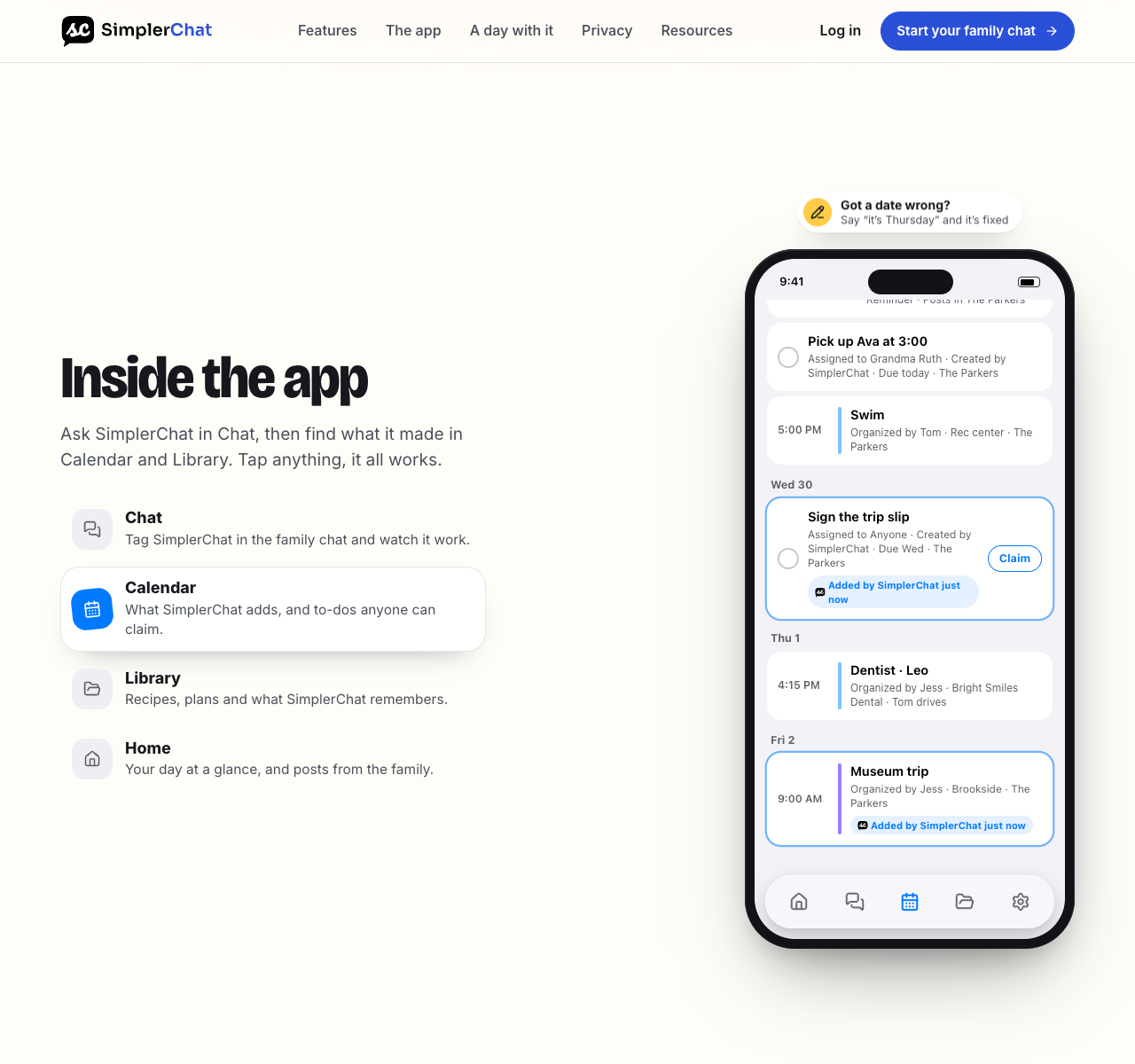
- Open SimplerChat, create your family chat and invite the other caregiver.
- Have them join with their own account and open that family chat on their phone.
- Ask the assistant in the family chat to create an event with its date, time and location. You can also upload a flyer or PDF and ask it to read the details first.
- Ask for the preparation to-dos. Have the responsible adult claim each one, then check that both of you can find the event and tasks.
For example, after checking the notice, ask: “Add Maya's sports day on [date] at [time] to our family calendar. Create a to-do for the evening before to pack the lunch and team shirt.” When the school changes the time, bring the correction into the chat and ask for the event to be updated. Shared calendar, tasks and assistant capabilities
The shared Library also holds notes, lists, recipes and meal plans. That gives you somewhere to keep the packing instructions or shopping list when the calendar alone would leave you hunting through messages.
This setup uses SimplerChat's shared calendar. Each family member can see the shared space; your Personal chat stays separate. If you also need events in Google or Apple Calendar, use the Google sharing steps below. SimplerChat can create an event in a connected Google calendar you can edit when you explicitly ask for that destination; its own calendar remains the default.
Create your family calendar in SimplerChat and try one real plan together.
Use Google Calendar in the phones' calendar apps
For events in Google Calendar or Apple Calendar on the phones, create a separate Google Calendar for household events, invite each caregiver's Google account and grant the people who should edit it Make changes and see event details. They can then use the Google Calendar app on iPhone or Android. The iPhone user can also show the Google calendar in Apple's Calendar app. Creating and sharing the calendar starts in a computer browser; events can be added from either phone afterward. Google documents calendar creation, person-by-person permissions and event creation in shared calendars on iPhone and Android.
Decide which adult will own the new calendar. That person can manage membership and, as owner, permanently delete or transfer the calendar. Invite each person through their own account so you can manage their access individually. A work or school Google account may have administrator sharing restrictions, so a personal account is easier for a household setup. Google explains ownership and administrator restrictions.
Give each person the right access
In Google Calendar, See event details lets someone read the calendar. Make changes and see event details lets them edit its events. Make changes and manage sharing also lets them invite or remove other people. Choose Make changes and see event details for a caregiver who needs to add pickups, appointments and changes without managing access. A child or relative who only needs the schedule can have view access. Google's sharing permissions spell out these differences.
Use a dedicated calendar for entries meant for the group. Sharing your entire primary calendar may expose personal appointments. The new calendar can contain just the dates everyone needs: care handoffs, school pickups, travel and shared commitments. You can still keep private events on your individual calendars.
Avoid turning on Make available to public for a household calendar. Google says a public calendar can be found on the internet or subscribed to by others. Apple's Public Calendar link for an iCloud calendar is also read-only for people who receive it. Apple describes editable private iCloud sharing for other iCloud users. For a household with an Android editor, an individually shared Google calendar provides the documented edit permissions on both phone platforms. Google's public-calendar explanation and Apple's iCloud sharing guide explain the access difference.
Create and share the calendar on a computer
- Sign in to Google Calendar with the account that will own the household calendar.
- Beside Other calendars, click +, then Create new calendar. Give it an unmistakable name such as “Our household,” then click Create calendar. Google says new calendars are created in a browser and then appear in its mobile apps. See the creation instructions.
- Under My calendars, find the new calendar. Click its three-dot menu, then Settings and sharing.
- Open Shared with, select Add people and groups, and enter the Google account address used by the other caregiver. Choose Make changes and see event details, then Send. Repeat for each person with the permission each needs. Google's sharing steps use these menu names.
- Ask each invitee to open the sharing email while signed in to the invited account and tap Open Calendar. If the email is missing, check the exact address and the spam or trash folder before sending another invitation. Google documents invitation acceptance and missing-invitation checks.
If your household already uses a Google family group, check for the Family calendar that Google creates for the group. Group members can edit its events and manage its sharing. You can use that existing calendar if those permissions suit everyone; a new secondary calendar gives the owner a separate invitation list and permission choice. Google describes how its Family calendar works.
Check the calendar on both phones
Use the Google Calendar app on each phone for the first check. On the iPhone, sign in with the account invited in step 4. On Android, use that phone owner's invited account. In each app, tap the menu at the top left and make sure the box beside “Our household” is checked. Google gives this visibility step for iPhone and Android.
When you create an event, tap the calendar name in the event form and select “Our household” before saving. Google documents this for iPhone and Android. Seeing a family event on your phone does not mean every new event you make will automatically go into that calendar. Check the destination each time, especially when your phone also shows work, iCloud or personal Google calendars.
A two-phone check before entering real plans
Here is a suggested setup check using disposable example events.
| Action | What the other person should confirm |
|---|---|
| On the iPhone, create “Shared test: pickup” for a convenient future time and select “Our household” | It appears on Android under “Our household,” with the intended time |
| On Android, change the event title to “Shared test: pickup confirmed” | The title changes on the iPhone |
| On Android, create “Shared test: library” in “Our household” | It appears on the iPhone; the iPhone user can edit it |
Delete these test events when finished. If one person can see but cannot edit an event, recheck that person's permission in the calendar's Shared with settings. If a test event appears only on its creator's device, open it and inspect the calendar name. This check is more useful than relying on color alone.
If the iPhone user prefers Apple Calendar
The iPhone user can add their Google account to Apple's Calendar app through Settings > Apps > Calendar > Calendar Accounts > Add Account > Google. Turn on Calendars for that account. Those are Apple's current account steps; Google confirms that its events can appear in Apple Calendar. In Apple Calendar, tap Calendars and select the shared Google calendar. When creating an event, check its Calendar field and choose the shared calendar. Apple's multiple-calendars guide also explains how to move an event to another calendar.
If the shared calendar shows in Google Calendar on the web but is missing from Apple Calendar, check Google's Calendar sync selection page while signed in to the invited account. Select the shared calendar, save, then refresh Apple Calendar. Google's synchronization guide says calendars under My calendars sync automatically and gives this selection step for other calendars. If it still does not appear, use the Google Calendar app to verify the sharing and destination first.
Google lists some features that do not carry into Apple Calendar, including Google Calendar email notifications for events and creating new Google calendars. Keep sharing and permission changes in Google Calendar's computer interface. An iPhone using Apple Calendar can still accidentally save a household event to iCloud if iCloud is the default destination. Apple explains the Default Calendar setting.
When updates or alerts seem to fail
Start with the account, calendar and event destination. On either Google Calendar app, check that the correct account is signed in, “Our household” is selected in the menu and the missing event actually belongs to it. Google recommends those checks in its iPhone sync guide and Android sync guide. On Android, the device's Calendar account sync setting and the individual calendar's Sync setting may also need attention; exact device settings vary by manufacturer.
Each person controls their own event reminders. Changing your notification setting does not set the other caregiver's. In the Google Calendar app, each person can open Menu > Settings, choose the household calendar and set the reminders they need. Google's notification guide explains that those settings are personal. If the household needs emails when events are changed, Google's computer settings include Other notifications for event-change categories, but verify how those emails behave in your own accounts. Do not use a calendar alert as the only handoff for a same-day change.
Keep the household calendar's sharing list current as responsibilities change. The owner can remove someone's access under Settings and sharing > Shared with, using Google's removal steps. Everyone else can keep using their own calendars for appointments the group does not need to see.
Bring school dates and household jobs into the plan
Once both phones show the calendar, add one real appointment and agree who handles the preparation. For school feeds or term calendars, use the guides to adding school dates to Google Calendar or adding a school calendar to iPhone.
If everyone can see the dates but one person still remembers all the work, use the household responsibility worksheet. It helps you agree who checks the details, prepares what is needed and follows up.
The shared calendar, family tasks and all other SimplerChat features are free. Only assistant messages have a daily limit on the free plan; there are no paid feature gates. Your family space has no ads, and SimplerChat never sells your data.
Start a shared family space in SimplerChat for your next appointment and the jobs around it. Invite the other adult and check the plan together.
Published by SimplerChat. Available in the US and Canada excluding Quebec, for ages 13 and above with guardian permission where required. Eligibility